
Cam System: Difference between revisions
From TibiaScape
More actions
Created page with "Lorem ipsum dolor sit amet, consectetur adipiscing elit. Etiam quis lacus tempor, cursus lacus id, cursus enim. Interdum et malesuada fames ac ante ipsum primis in faucibus. Quisque nec nunc orci. Nam consectetur quis dui et accumsan. Nam augue enim, mollis et felis a, facilisis ullamcorper lectus. Phasellus non felis in libero ultricies auctor id sit amet nulla. Maecenas volutpat nec libero ac facilisis. Cras nisi ex, suscipit et ante non, mattis volutpat ipsum. Nam sed..." |
Replace outdated copy with a concise source-verified cam guide |
||
| (7 intermediate revisions by the same user not shown) | |||
| Line 1: | Line 1: | ||
<div class="tsw-article"> | |||
The '''Cam System''' records game sessions automatically and replays them from the character list. | |||
{{Guide status|status=Server source verified|verified=26 August 2026}} | |||
<gallery mode="packed" heights="90"> | |||
File:Cam Tab.png|Open the Cams tab | |||
File:Cam Controls.png|Playback controls | |||
</gallery> | |||
== Watch a recording == | |||
# Open the '''Cams''' tab. | |||
# Select a recording and log in. | |||
# Use the controls or commands below. | |||
== Playback commands == | |||
{| class="wikitable tsw-data-table" | |||
! Command | |||
! Action | |||
|- | |||
! scope="row" | <code>/goto 120</code> | |||
| Go to 120 seconds. | |||
|- | |||
! scope="row" | <code>/back 30</code> | |||
| Go back 30 seconds. | |||
|- | |||
! scope="row" | <code>/forward 30</code> | |||
| Go forward 30 seconds. | |||
|- | |||
! scope="row" | <code>/share</code> | |||
| Show the recording login and password for sharing. | |||
|} | |||
Use '''Ctrl+Left''' or '''Ctrl+Right''' to skip. Use '''Ctrl+Up''' or '''Ctrl+Down''' to change playback speed. | |||
</div> | |||
[[Category:Game systems]] | |||
Latest revision as of 01:13, 26 August 2026
The Cam System records game sessions automatically and replays them from the character list.
Guide status: Server source verifiedLast verified: 26 August 2026
-
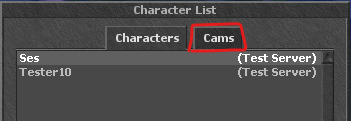 Open the Cams tab
 -
 Playback controls


Watch a recording
- Open the Cams tab.
- Select a recording and log in.
- Use the controls or commands below.
Playback commands
| Command | Action |
|---|---|
/goto 120
|
Go to 120 seconds. |
/back 30
|
Go back 30 seconds. |
/forward 30
|
Go forward 30 seconds. |
/share
|
Show the recording login and password for sharing. |
Use Ctrl+Left or Ctrl+Right to skip. Use Ctrl+Up or Ctrl+Down to change playback speed.