
Cam System: Difference between revisions
From TibiaScape
More actions
No edit summary |
Replace outdated copy with a concise source-verified cam guide |
||
| (6 intermediate revisions by the same user not shown) | |||
| Line 1: | Line 1: | ||
<div class="tsw-article"> | |||
The '''Cam System''' records game sessions automatically and replays them from the character list. | |||
{{Guide status|status=Server source verified|verified=26 August 2026}} | |||
<gallery mode="packed" heights="90"> | |||
File:Cam Tab.png|Open the Cams tab | |||
File:Cam Controls.png|Playback controls | |||
</gallery> | |||
== Watch a recording == | |||
# Open the '''Cams''' tab. | |||
# Select a recording and log in. | |||
# Use the controls or commands below. | |||
== Playback commands == | |||
{| class="wikitable tsw-data-table" | |||
! Command | |||
! Action | |||
|- | |||
! scope="row" | <code>/goto 120</code> | |||
| Go to 120 seconds. | |||
|- | |||
! scope="row" | <code>/back 30</code> | |||
| Go back 30 seconds. | |||
|- | |||
! scope="row" | <code>/forward 30</code> | |||
| Go forward 30 seconds. | |||
|- | |||
! scope="row" | <code>/share</code> | |||
| Show the recording login and password for sharing. | |||
|} | |||
Use '''Ctrl+Left''' or '''Ctrl+Right''' to skip. Use '''Ctrl+Up''' or '''Ctrl+Down''' to change playback speed. | |||
</div> | |||
[[Category:Game systems]] | |||
Latest revision as of 01:13, 26 August 2026
The Cam System records game sessions automatically and replays them from the character list.
Guide status: Server source verifiedLast verified: 26 August 2026
-
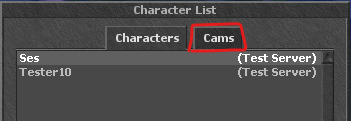 Open the Cams tab
 -
 Playback controls


Watch a recording
- Open the Cams tab.
- Select a recording and log in.
- Use the controls or commands below.
Playback commands
| Command | Action |
|---|---|
/goto 120
|
Go to 120 seconds. |
/back 30
|
Go back 30 seconds. |
/forward 30
|
Go forward 30 seconds. |
/share
|
Show the recording login and password for sharing. |
Use Ctrl+Left or Ctrl+Right to skip. Use Ctrl+Up or Ctrl+Down to change playback speed.